
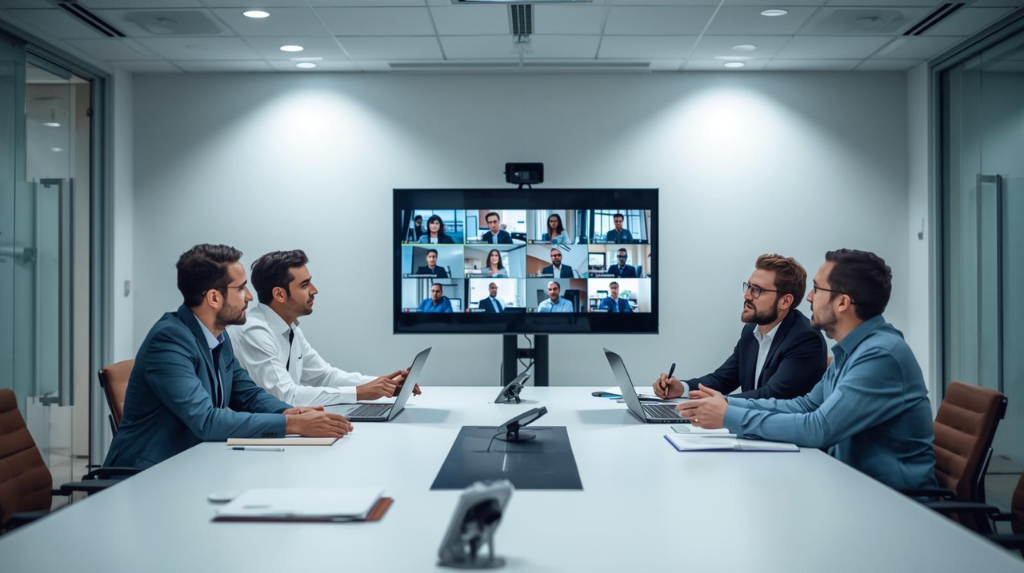
Blurry video on Zoom is one of those problems that makes a meeting feel off right away. When clients bring it up with us, it’s usually about a meeting room, but the same causes show up on a laptop at someone’s desk.
There’s rarely just one culprit. It’s usually some mix of settings, lighting, bandwidth, and hardware. Here’s how to work out what’s behind the blur, and how to fix it.
Find Out Why Your Zoom Video Is Blurry
Before you change anything, work out what kind of blur you’re dealing with. A soft webcam needs a different fix than a fuzzy shared screen.
Blurry Live Camera Feed
If your face looks soft or pixelated, compare Zoom’s camera preview with another camera app. If it’s soft everywhere, you’re probably looking at a dirty lens, poor focus, low light, or a webcam limitation. If your preview looks sharp but everyone else sees blur, your network is the likely suspect.
Blurry Screen Share
If text, spreadsheets, or slides look fuzzy, your webcam probably isn’t the problem. Screen sharing is handled separately from camera video, and scaling or a sharing option may reduce clarity.
Blurry Zoom Recordings
A recording may look different because of its type, the received video, or its settings. Compare it with the live feed and check whether blur affects your camera, shared content, or both. If only the saved file looks poor, investigate recording settings before replacing your webcam.
Fix 1: Check Your Zoom Video Quality Settings
Start with Zoom’s video options. Open the desktop app, select your profile picture, then Settings > Video. Choose the correct camera and review any available quality options. Check the web portal’s Settings > Meeting > Media Settings for HD video, if available.
Turning on HD in Zoom won’t automatically give you the sharpest picture. Availability depends on your account, device, app version, and Zoom’s requirements.
Standard HD is generally 720p; 1080p is restricted to eligible accounts and configurations. A greyed-out setting may be locked by an administrator.
To test it, turn on HD if available and view the active speaker in full-screen speaker view. If your connection or computer struggles, disable it again; HD uses more bandwidth and processing power. See Zoom’s HD video instructions.
Fix 2: Clean Your Camera Lens and Check Focus
Check the lens first. Fingerprints, dust, and cleaning residue can make a good camera look hazy. Wipe it gently with a clean microfiber cloth, without spraying cleaner directly onto it.
Check focus, too. If the webcam has autofocus, give it a moment to adjust or briefly cover and uncover the lens to prompt refocusing. Avoid sitting too close or using excessive digital zoom, which softens detail.
If your webcam is still blurry outside Zoom, check the camera software and firmware. If you’re using a Logitech webcam, Logi Tune supports focus adjustments on compatible models. Some cameras have fixed focus, so check your model’s instructions.
Fix 3: Improve Your Lighting
In dim light, a webcam may increase exposure and processing, making movement smeared and details grainy. That’s why a webcam can look blurry on Zoom even when the lens is spotless.
Face a window or place a soft light slightly above eye level. Avoid a bright window behind you, which can leave your face dark. Overhead lights create harsh shadows, and direct sunlight can cause glare. Honestly, steady, even light often does more than a new camera.
Fix 4: Check Your Internet Connection and Bandwidth
Zoom automatically adjusts video quality to match your connection. If your bandwidth is limited, it lowers the video resolution to keep the call running smoothly. So, if you’re experiencing poor Zoom video quality, a weak internet connection is often the cause.
Run a speed test and look at your upload speed. Zoom asks for roughly 3.8 Mbps to send 1080p video. Plenty of home connections have fast downloads but slow uploads, so that number can surprise you.
A few things help:
- Plug in an Ethernet cable instead of using Wi-Fi.
- Move closer to your router.
- Ask others at home to pause streaming and big downloads.
- Pause cloud backups that eat your upload speed.
Fix 5: Turn Off Filters and Virtual Backgrounds
Filters, portrait effects, low-light adjustments, and virtual backgrounds process the image. On some computers, this can soften edges or distort movement. Virtual backgrounds without a green screen can also limit resolution.
Temporarily disable virtual backgrounds, touch-up effects, and filters in Video settings. If the preview improves, re-enable features one at a time. A plain background and good lighting may be the simpler fix.
Fix 6: Update Zoom, Camera Drivers and Firmware
Outdated software can cause camera glitches and compatibility issues. Update Zoom, your operating system, and the webcam’s official drivers, control software, or firmware.
On Windows, check the camera in Device Manager. On macOS, install system updates and use the manufacturer’s software where needed. Download updates only from official sources.
Restart and test in Zoom and another app. If the camera started going out of focus after an update, a driver rollback or manufacturer support may help more than further Zoom adjustments.
Fix 7: Free Up CPU and USB Bandwidth
A computer juggling video calls, browser tabs, and demanding software may struggle to process video. Close unnecessary apps and restart Zoom. Overheating or sustained high CPU use can also affect quality.
Connect an external webcam directly to the computer instead of an overloaded hub or dock. Try another port, check the cable, and temporarily disconnect other high-bandwidth USB devices.
It’s also worth checking that another app isn’t using the camera at the same time. Close video calling tools, browser tabs with camera access, and recording software before reopening Zoom.
If you use an external camera, make sure Zoom has permission to access it in your computer’s privacy settings. Permission problems usually stop video altogether rather than making it blurry, but checking access can reveal whether Zoom is using the camera you intended.
When testing changes, keep the conditions consistent. Sit in the same place, use the same lighting, and avoid changing three settings at once.
Otherwise, it’s hard to tell which adjustment helped. Start with free, quick checks before buying new equipment: clean the lens, improve lighting, check focus, and test the connection. Then move on to software and hardware.
For business users, record which rooms or devices are affected and whether the problem happens at particular times.
If several rooms become blurry at once, a shared network or configuration issue may be more likely than multiple camera failures. If one room has a persistent problem, inspect its camera, cabling, and local settings.
If you’re using a laptop on battery power, connect it to power during a test. Some systems limit performance to save energy, especially when several applications are open.
Also check whether Zoom’s efficiency or low-resource settings are enabled by an administrator, as these may deliberately cap video resolution to keep meetings stable.
Fix 8: Fix a Blurry Zoom Screen Share
For blurry slides or text, check the source content and enlarge small text. Zoom may scale a shared window, and viewers on smaller displays may see less detail.
Check Optimize for video sharing. Use it for full-screen video clips, not spreadsheets, websites, or slides; Zoom warns it can blur non-video content. For a local video, Zoom’s built-in video sharing feature may provide smoother playback. See its screen-sharing guidance.

Is Your Webcam the Problem?
If the lens, lighting, network, software, and settings check out, compare the camera in another app. If it’s blurry everywhere, consider its focus, resolution, cable, and age. Laptop cameras can struggle in low light.
A 4K webcam does not automatically deliver 4K through Zoom; the app, account, connection, and configuration affect the final resolution. A good 1080p camera with proper lighting can outperform a 4K model in a dark room. Upgrade when testing points to a hardware limit.
Why Zoom Rooms and Conference Room Cameras Look Blurry
Meeting rooms add a whole new layer. There are bigger spaces, more people, and more gear. When we’re called in to fix a blurry room, the camera is often fine. It’s the setup around it.
Camera Placement and Room Size
Mount the camera at eye level, centered above or below the display, so people naturally look into it. If it’s too far from the table, faces get small and soft. This is one of the most common issues we see in rooms we’re asked to fix.
Wide-angle lenses fit big groups but lose detail. For larger rooms, a camera with optical zoom or auto framing keeps faces sharp.
Room Lighting and Glare
Overhead lights cast shadows across faces, and windows behind the table turn people into silhouettes. Aim for soft, even light at face level. Blinds help a lot.
Network and Zoom Rooms Configuration
Room systems need a steady network. Use a wired connection, and make sure the network has enough upload bandwidth for HD. Then check the camera resolution in your Zoom Rooms settings, since a wrong setting can quietly cap quality.
Firmware and Ongoing Device Management
Room gear needs updates just like laptops do. Cameras, codecs and the Zoom Rooms app all get firmware and software releases. Without a plan, quality slowly slides, and nobody notices until a big meeting goes badly.
Get Clearer Zoom Meetings with Limitless AV
Fixing one laptop is easy. Fixing a whole building of meeting rooms is a different job, and that’s where we come in.
Meeting room and conferencing tech is what we do every day. We look at the full picture, from camera placement and lighting to network needs and ongoing support, instead of guessing at one piece.
We design, install, and support Zoom Rooms and meeting room AV systems across Metro Vancouver, from picking the right equipment to setup, training, and ongoing support. Explore our Zoom conference room solutions or get in touch with our team.

FAQs
Why Does My Camera Look Fine in Other Apps but Blurry on Zoom?
Zoom compresses video to keep calls smooth. Other apps, like your camera app, show the raw feed. If Zoom looks worse, check the HD setting, your upload speed, and whether filters or virtual backgrounds are on.
Does Zoom Automatically Lower Video Quality?
Yes. Zoom adapts to your bandwidth, your computer’s power and the meeting layout. When something runs short, it lowers resolution to keep the call stable. Fix the bottleneck and quality usually bounces back.
Will a 4K Webcam Make Zoom Look Sharper?
Not always. Zoom’s resolution caps depend on your plan, so you may not see the full benefit. A good 1080p webcam with strong lighting often beats a 4K one in a dim room. Spend on lighting first.
