

Why is my Zoom audio echoing? Zoom audio echoing happens when your mic picks up sound from nearby devices. It’s a common issue that, in most cases, can be fixed by adjusting audio and volume settings.
In this guide, we teach you how to fix echo and audio feedback fast for your upcoming meeting.
What Causes Echo and Feedback on a Zoom Call?
An echo in a Zoom meeting usually happens when the sound from your speakers is picked up by a microphone. The sounds get sent back into the call, causing the echo.
Don’t worry, Zoom audio echoing has many quick fixes. To get you started, here’s a simple guide to the most common problems & causes.
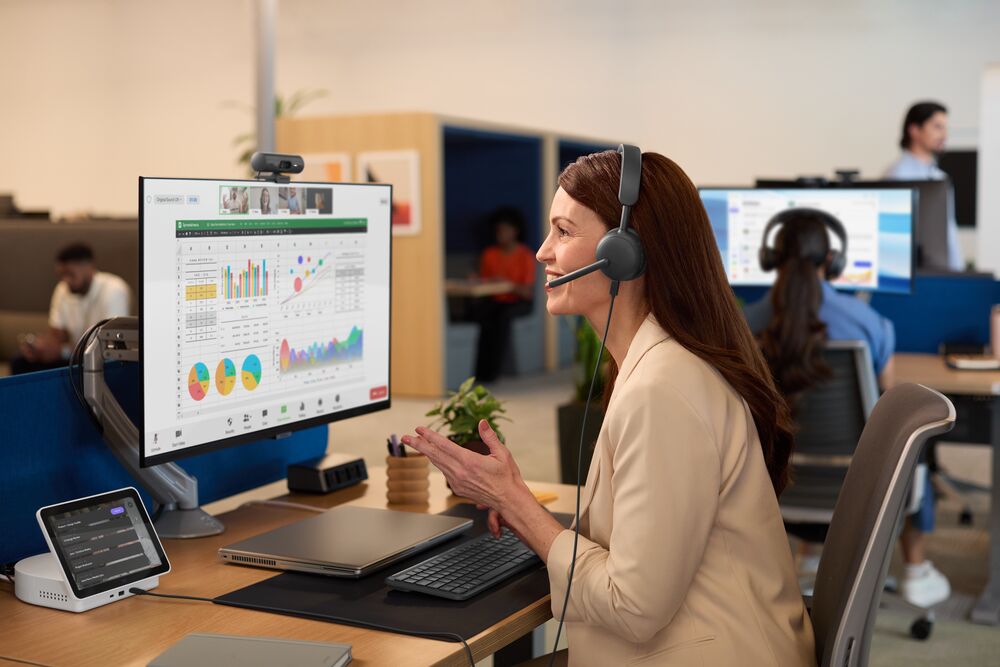
How to Fix Zoom Audio Echo: 8 Troubleshooting Steps
Fixing the echo in a Zoom meeting should only take a few minutes. You can start with the simplest solutions first, then test your audio after each step.
Step 1: Use Headphones or a Headset
If you’re using speakers for your audio, your mic can pick up on the sound and send it back into the call. When this happens, you may hear your own voice echoing, and other people may hear themselves.
A clear symptom of this is if the echo stops when you mute yourself.
To solve the issue, you can either use headphones or a headset. The Zoom mic feedback should disappear.
Step 2: Make Sure Only One Device in the Room Has Audio On
Joining the same session from multiple devices can cause echo in Zoom meetings. For instance, it can happen when a laptop and conference room system are both connected to the call.
You can tell this is the issue when the echo starts when someone joins from a second device. Moreover, everyone can hear the echo.
A quick fix is to make sure only one device in the room has audio on. In case you need a second device, you may select the Don’t Connect to Audio button.
Step 3: Mute Yourself When You’re Not Speaking
Having an open mic means you may also pick up on sounds in your environment. When many people have their mics on, it can make echoes even more noticeable.
Muting yourself when you’re not speaking can prevent any background noise. This prevents your mic from picking up audio from nearby devices.
Step 4: Lower Your Speaker Volume
The louder your speakers are, the higher the likelihood of your mic capturing audio coming from them. It may sometimes create an echo or Zoom mic feedback.
If the echo gets louder when you increase the volume, this could be why.
To prevent the echo, try lowering your speaker volume.
Step 5: Check That Zoom’s Echo Cancellation Is Enabled
One of the best features in Zoom is echo-cancellation. It detects unwanted sounds and reduces them.
If this feature isn’t turned on, you may hear echoes during the call. The echo can also persist even when you lower the volume.
To check whether echo-cancellation is on, you can open Zoom’s settings and click on Audio.
Step 6: Move Your Microphone Away From Your Speakers
Your mic and speaker’s positions can have a huge impact on Zoom audio echoing. When your mic is too close to the speaker, the mic may pick up on the sounds. If you’re hearing high-pitched sounds and echoes, this is likely the case.
Fixing this issue is easy. All you have to do is move your mic away from the speakers. This should prevent Zoom mic feedback.
Step 7: Update Zoom and Your Audio Drivers
Did you know that running an older version of Zoom can sometimes cause audio issues?
Software updates often include bug fixes and performance improvements. Having an out-of-date Zoom or audio driver can cause echoes. You can tell this is the cause if the echo started after a system update.
To stop the echoes, you should update your Zoom to the latest version. Don’t forget to check for audio driver updates as well.
Step 8: Restart Your Audio Devices
Did the echo start suddenly, even though your setup hasn’t changed? Are your mics and speakers not working as intended?
In some cases, audio devices can stop communicating with computers. This can happen if you’re constantly plugging or unplugging devices.
The fix is simple. Just restart your computer and audio devices. Unplug and reconnect the mic, headset, and speaker. For Bluetooth audio devices, you may disconnect and pair them again.
How Do I Find Out Who Is Causing the Echo?
Sometimes, certain participants may cause the echo. To find out who is causing the echo, you can first mute all the participants. After muting, you can investigate.
A good tip is to unmute each attendee one at a time. Doing so will allow you to isolate the attendee causing the echoes.
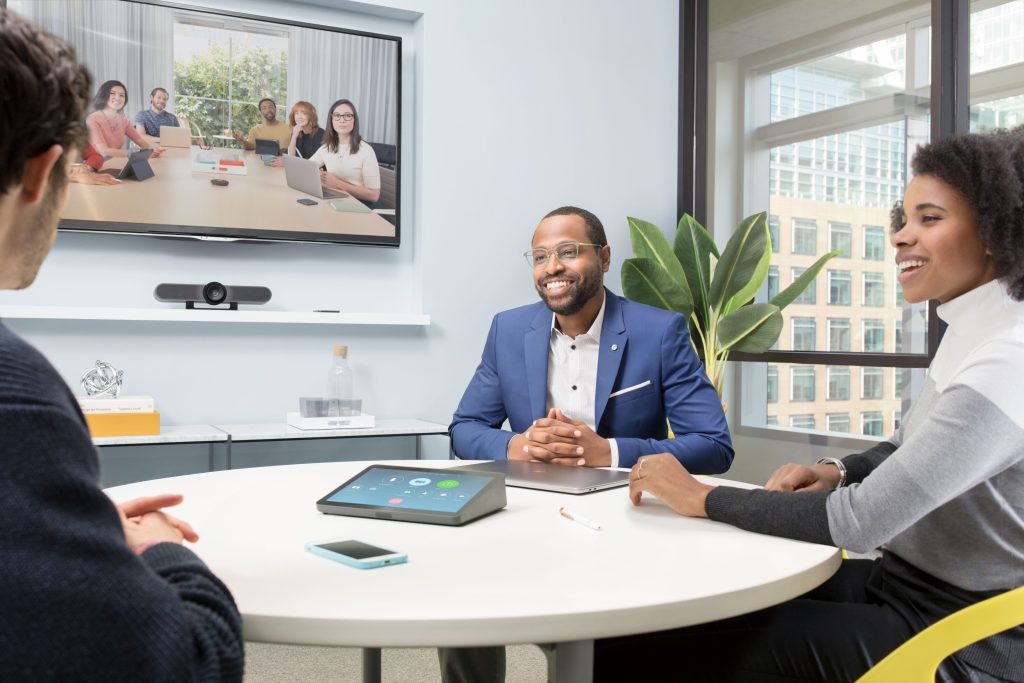
Why Does Echo Keep Happening in Meeting Rooms?
In general, echoes happen when there are multiple active devices where speakers and mics are too close to each other. However, if none of these is the cause, the echo may be due to the meeting room itself.
Echoes can keep happening in meeting rooms due to wrong configurations. Remember, these rooms have equipment that can contribute to echoing.
Not only that, but large spaces with glass walls and hardwood floors naturally produce echoes. So, when the echo only happens in the conference room, it’s a sign that your AV system or acoustics need checking.
When Zoom Echo Is a Hardware or Room Design Problem
Below are common signs that you need more than simple Zoom setting adjustments.
Poor Room Acoustics
The way a room is built affects how sound travels through the space. For example, large open rooms with smooth surfaces tend to produce more echoes.
Sounds can bounce off glass walls and concrete floors. Therefore, adding acoustic panels, curtains, and other sound-absorbing materials can make a difference.
Incorrect AV System Configuration
Microphones, speakers, cameras, and video conferencing systems must all work together within a confined space. If their positioning isn’t planned correctly, you may experience feedback.
AV professionals know how to properly configure AV systems. With a professional’s help, your system will be able to produce clear, consistent audio for important meetings.
Outdated Conference Room Equipment
Nowadays, meeting rooms are used for video calls, presentations, and communications between remote teams. However, older equipment lacks the features that can deliver the audio quality you need.
If your meeting room has aging equipment, it may be time for an upgrade. With modern equipment, you can improve the experience and avoid frustrating echoes.
How to Prevent Zoom Echo Before Your Next Meeting
It’s always a good idea to check your equipment and meeting room before important calls. A few minutes of preparation can help you avoid audio issues for a smooth meeting.
You can use the checklist below to quickly prevent Zoom echoes before your next meeting.
- Use headphones or a headset.
- Keep audio on only one device. Disconnect audio from other devices in the room.
- Test your microphone and speakers. Move them further apart if necessary.
- Lower the volume on your speakers.
- Check Zoom’s echo cancellation settings.
- Make sure Zoom is up to date.
Need Help Fixing Persistent Zoom Audio Issues?
When Zoom audio echoing is a hardware or acoustics problem, it’s a sign that you need proper AV design. You’ll want to make sure that your open mics, speakers, and room acoustics are all working together seamlessly.
Limitless AV is a certified Zoom, Logitech, and Neat integrator that fixes echoing for good. We help transform your organization’s AV system so you’re always ready for the most crucial meetings.
Are you ready for technology systems that support your growing business?
You can book a conference room audio assessment for free or visit our website to learn more about Zoom conference room AV services in Metro Vancouver!
FAQs
Why can people hear themselves echo on Zoom?
Echoes in Zoom meetings usually happen when microphones pick up sounds from nearby speakers. The mic sends the audio back into the call, producing an echo. Moreover, echoing can happen when multiple devices in the room are connected to the same Zoom call.
Does using headphones stop Zoom echo?
Yes. Headphones can stop Zoom echo. The headphones prevent audio from being picked up by nearby microphones.
How do I turn on echo cancellation in Zoom?
To turn on echo cancellation in Zoom, open your Zoom Desktop App and click on your profile picture. Next, open Settings, then click on Audio. Scroll to the bottom and click Advanced. Finally, set echo cancellation to Auto.
Can room acoustics cause Zoom echo?
Yes. Sound can bounce off hard surfaces, like glass, concrete, and bare walls in meeting rooms. The bouncing of the sound waves causes echoing.
To prevent this, you can add soft materials, such as carpet, curtains, and pillows. You may also contact AV professionals for an assessment.
Why does Zoom echo when multiple people are in the same conference room?
Zoom echoes when multiple people are in the same conference room because multiple devices may have active audio connected to the same meeting. Turn off audio on extra devices, disconnect computer audio, or use headphones to prevent feedback.