
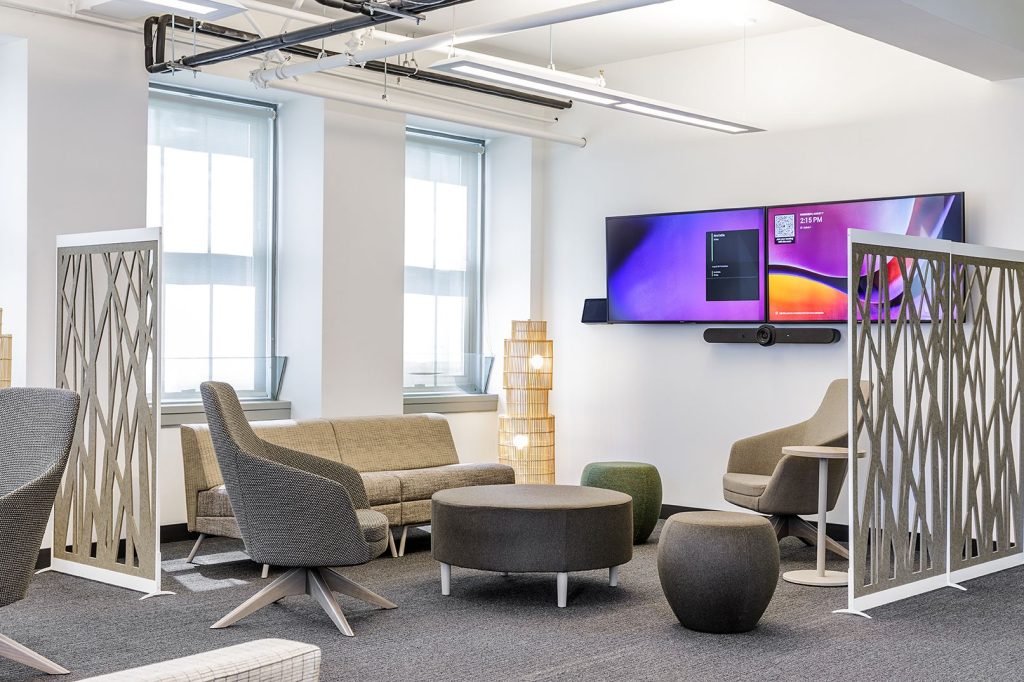
We often get asked, “Teams or Zoom?” when we’re scoping a meeting room. The best fit often comes down to more than the software itself. It depends on what your business already runs on, the rooms you’re working with, and how your team actually uses them.
Below, we compare Microsoft Teams Rooms and Zoom Rooms on features, cost, hardware, and management, so you can see which one fits your business.
Microsoft Teams Rooms: What You Need to Know
The Microsoft Teams Rooms platform pairs Teams software with hardware built for meeting spaces: displays, cameras, microphones, speakers, and a touch controller.
It runs on Windows or Android, with certified equipment from a wide range of major AV brands.
If your company already runs on Microsoft 365, Teams Rooms will usually be the more natural fit. It ties directly into Outlook and Exchange. Book a meeting in your calendar as usual, walk into the room, and tap the screen to join.
Zoom Rooms: What You Need to Know
Zoom Rooms brings the same idea to the Zoom Workplace ecosystem, combining meeting software, room hardware, and a touch controller into one system.
The platform also supports uses beyond traditional meeting rooms. You can set it up for hot-desking, check-in kiosks, room-booking displays outside meeting rooms, digital signage, and interactive whiteboards.
Zoom Rooms runs on supported Windows, macOS, and Android hardware, giving businesses several options when planning their meeting spaces.
Microsoft Teams Rooms vs. Zoom Rooms: How They Compare
Feature | Microsoft Teams Rooms | Zoom Rooms |
Primary platform | Microsoft Teams | Zoom |
Operating systems | Windows and Android | Windows, macOS, and Android |
Certified hardware | Broad range of certified room systems and peripherals | Broad range of certified appliances and hardware |
Room sizes | Huddle, small, medium, and large rooms | Focus, huddle, small, medium, large, and custom spaces |
Room scheduling | Microsoft 365 calendars and Teams Panels | Zoom scheduling displays and workplace integrations |
Wireless content sharing | Supported | Supported |
Digital whiteboarding | Microsoft Whiteboard | Zoom Whiteboard |
Multi-display support | Supported, with advanced options in Teams Rooms Pro | Supported, including up to three displays on supported setups |
Third-party meetings | Direct Guest Join for Zoom, Webex, and Google Meet | Can join supported third-party meetings, including Teams, Google Meet, and Webex |
AI capabilities | Microsoft Copilot, subject to licensing | Zoom AI Companion and supported AI features |
Central management | Teams admin centre and Teams Rooms Pro management | Zoom Rooms management in the Zoom admin portal |
Calendar integrations | Microsoft 365 and Outlook | Microsoft 365, Google, and Exchange |
Best for | Businesses already using Microsoft 365 | Businesses already using Zoom Workplace |
Licensing and Cost
Teams Rooms Basic is available at no additional cost with eligible Microsoft 365 or Office 365 subscriptions for up to 25 certified room systems per tenant. It covers one-touch join, calendar synchronization, screen sharing, and basic device controls, which may be enough for smaller offices.
If you need more advanced remote monitoring, alerts, or management features, Teams Rooms Pro costs $40 USD per room per month when billed annually. It’s also the option to consider if you need more than 25 room systems.
Zoom Rooms doesn’t offer a free tier. Each room costs $49 USD per month, or $499 USD per year with annual billing, and includes its core room features and management tools.
For a 25-room office, that works out to approximately $12,475 USD per year for Zoom Rooms and $12,000 USD per year for Teams Rooms Pro. If Teams Rooms Basic covers everything you need, the Microsoft licensing cost may be $0 beyond your existing eligible subscription.
These figures cover room licences, not hardware, installation, or ongoing AV support. Check the vendors’ current pricing and licensing terms before making a final comparison.
AI Features: Copilot vs. Zoom AI Companion
Teams Rooms works with Microsoft Copilot for meeting notes, recaps, and follow-up actions. Copilot has separate licensing requirements, so factor those into your budget rather than assuming they’re included with a Teams Rooms Pro licence.
Zoom also uses AI to improve the meeting experience. Its Intelligent Director feature uses multiple cameras to frame people in the room, helping remote participants see faces more clearly rather than looking at a single wide shot.
The features available will depend on your licences, hardware, and configuration. It’s worth comparing the specific AI tools your team would actually use before paying for additional licences.
Management, Monitoring, and IT Support
Once you’re managing more than a handful of rooms, central management becomes important. Both platforms provide tools to monitor devices, manage updates, and troubleshoot equipment remotely.
Teams Rooms Pro provides additional management capabilities through the Pro Management Portal and can integrate with Microsoft Intune if your IT team already manages devices that way. Zoom handles room management through its admin portal and Device Management tools.
Neither platform is automatically the better choice for every IT team. It largely comes down to which tools your business already uses and how your team prefers to manage its devices.
Security and Compliance
Both platforms offer security and compliance features, but how they’re configured and managed will depend on your existing IT setup.
Teams Rooms can use your organization’s Microsoft sign-in policies, multi-factor authentication, and Microsoft 365 security controls. Zoom Rooms supports single sign-on with major identity providers, including Okta, Google, and Microsoft, and offers additional security options depending on the configuration.
Both platforms provide device management features to help restrict room systems to their intended use and manage them centrally.
If your business operates in a regulated industry, such as healthcare or finance, check the specific certifications, data protection requirements, and configuration options relevant to your organisation. Don’t assume that a platform’s general compliance credentials automatically cover every use case.
Can You Use Microsoft Teams and Zoom in the Same Conference Room?
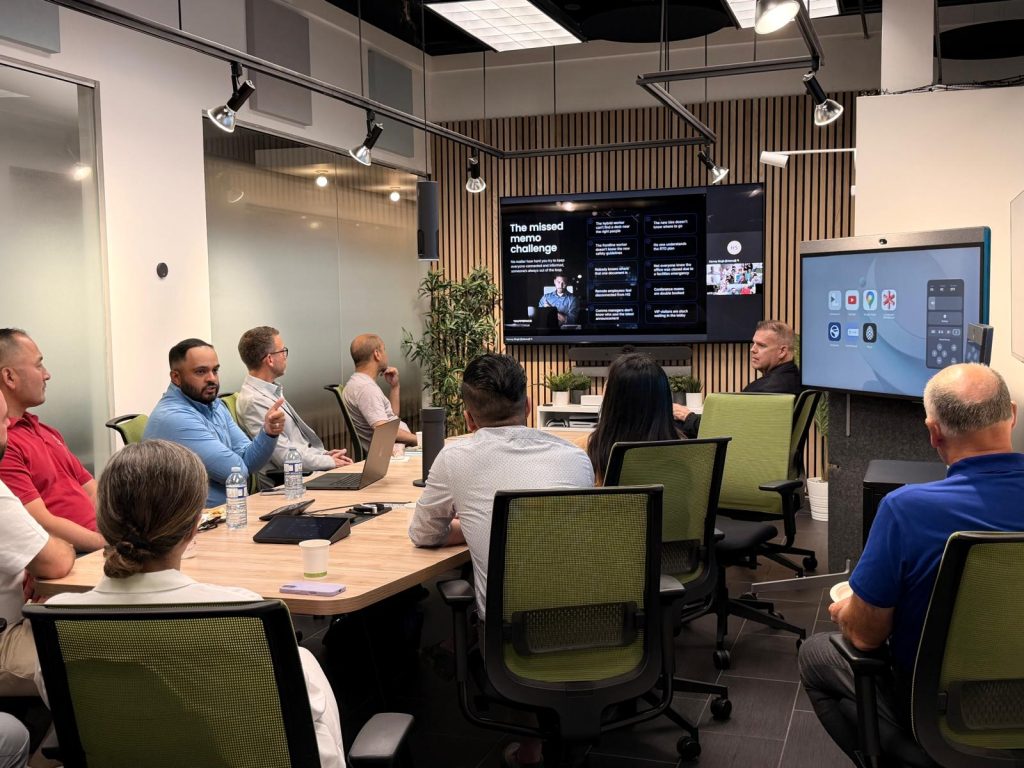
Yes, you can run both in the same room. Many businesses assume they have to pick just one, so this comes as a surprise. A Teams Rooms system can join a Zoom call (and vice versa) with a single tap and no extra licensing.
Keep in mind this free “guest join” is basic. It runs through a browser interface, so while you can share your screen, you usually lose dual-screen support and advanced controls.
For a richer experience, third-party services like Pexip offer full dual-screen and native hardware controls for a monthly per-room fee.
You don’t have to standardize every space on one system, either. Many Microsoft-centric companies run Teams Rooms in most areas while keeping a few Zoom Rooms available for clients who prefer them.
What Hardware Do Teams Rooms and Zoom Rooms Need?
The software gets most of the attention, but the room’s hardware plays a big role in how clearly people can see and hear each other. Both platforms support one-touch meeting joining, so users can walk into a room, select their meeting, and get started. How seamless that experience feels also depends on the room’s layout, equipment, and setup.
Both platforms rely on dedicated room setups, meaning the equipment operates on its own without anyone needing to plug in a laptop. They also share the same hardware partners, including Poly, Logitech, Yealink, Neat, and Crestron.
One thing we encourage clients to consider early is future flexibility. Some certified hardware supports both Teams Rooms and Zoom Rooms, which may give businesses more options if their platform requirements change. Compatibility depends on the specific device and configuration.
The hardware you need for Teams Rooms or Zoom Rooms depends largely on the size and layout of the room. For a basic conference room, you’ll usually need a display, an all-in-one video bar, and a tabletop controller.
Larger rooms take more gear. You may need multiple cameras, ceiling microphones, dedicated audio processors, external speakers, and several displays to cover the space.
Displays
The display is the most visible piece of gear in the room. It’s also the easiest to underspend on. You want a screen readable from the back row, bright enough to handle room lighting, and properly sized for the space.
For larger rooms, dual displays are common: one for video feed and one for shared content. If your team draws or brainstorms often, interactive smart boards are great additions.
Cameras
Camera choice depends on room size and seating.
- Small rooms: All-in-one video bars using wide-angle lenses to capture everyone close to the screen.
- Long boardrooms: Motorized pan-tilt-zoom cameras to focus clearly on people sitting far down the table.
- Large training rooms: Multi-camera setups to provide front and center-table views.
Camera software is just as crucial as the equipment itself. Auto-framing and speaker tracking keep the group centered or zoom in on the person talking.
Features like Teams IntelliFrame and Zoom Multi-Stream cut wide room shots into individual video tiles, giving in-room participants the same screen footprint as remote attendees.
Microphones and Speakers
A built-in mic on a video bar may cover a smaller room effectively, but coverage varies by device, room acoustics, and seating layout. Beyond the microphone’s effective range, you may need ceiling microphone arrays or tabletop microphones to pick up everyone clearly, especially in rooms with hard surfaces that bounce sound and create echoes.
Audio is one area worth assessing early in the design process. In larger rooms, a video bar’s built-in microphone may not pick up everyone equally well, particularly when people are seated farther away from the display.
Speakers need to match the room, too. A single soundbar may be enough for a huddle room, but a larger boardroom may need distributed audio so people at the back can hear clearly.
Room Controllers
Separate from the wall display, the controller is the touchscreen sitting on the table that lets you start, join, and manage meetings. Both platforms use a dedicated tablet-style controller: Microsoft’s Teams Rooms panels or a Zoom Room controller running the companion app.
The controller is one of the main things people will interact with, so it should be easy to find and even easier to use.
Wireless Presentation
Both platforms support this out of the box using slightly different technology. A Teams Rooms setup uses Bluetooth proximity join to detect nearby devices, letting you cast or join with one tap. You can also use Miracast or Apple AirPlay, depending on the hardware.
A Zoom Rooms setup uses ultrasonic sound frequencies to pair with your Zoom desktop app when you click “Share Screen.” Guests without the app can share via AirPlay, a browser link (share.zoom.us), or a quick room code.
Choosing the Right Setup for Your Meeting Room Size
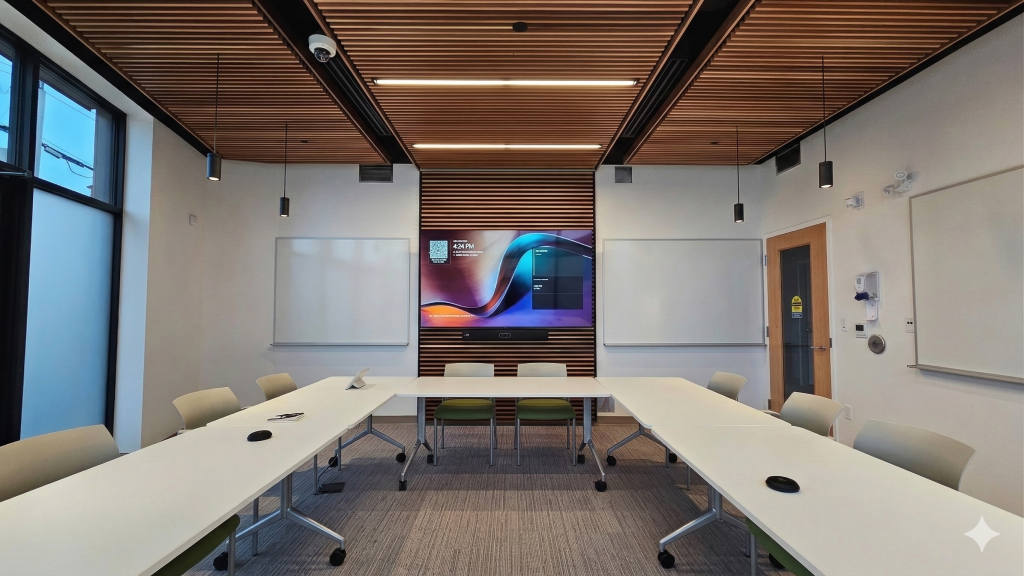
Room size and layout drive most equipment decisions. Before buying anything, think about how many people will use the space, where they’ll sit, and what the room needs to do.
Huddle Rooms
These are typically two- to four-person spaces for quick check-ins and brainstorming. An all-in-one video bar, combining a camera, microphone, and speaker, is usually a good starting point.
There’s no need to overcomplicate a room this size. Focus on fast meeting access, clear audio, and a camera with a wide enough field of view to capture everyone sitting near the screen.
Medium Conference Rooms
For five to ten people, you’ll want good microphone coverage, suitable camera framing, and enough audio output for everyone to hear clearly. Depending on the layout, that could mean a PTZ camera, dedicated microphones, and external speakers. One display may be enough, although two can be useful for regular hybrid meetings.
The most common problem we’re called in to fix in rooms this size isn’t the platform. It’s audio. A room that sounds fine in person can be difficult for remote callers once glass walls and a hard conference table start bouncing sound around.
That’s why it’s worth planning microphone placement and room acoustics alongside the camera and display setup, rather than treating audio as an afterthought.
Large Boardrooms
For rooms with more than ten people, audio and camera coverage become the priority. You may need one or two PTZ cameras, ceiling or tabletop microphones, dual displays, and enough processing capacity to handle multiple video feeds.
At this size, a modular setup can offer more flexibility than an all-in-one video bar. Cameras and microphones can be positioned separately to cover the whole room, particularly when people are spread across a long table.
The final design will depend on the room’s dimensions, seating arrangement, acoustics, and how often you run meetings with remote participants.
Training Rooms and All-Hands Spaces
Training rooms and all-hands spaces have different requirements. There’s often less back-and-forth conversation and more one-to-many presenting.
Prioritise clear audio and displays large enough for people at the back of the room to read. If the space doubles as a town hall or presentation venue, a dedicated PA system may be needed to ensure the speaker can be heard throughout the room.
Camera placement is also worth considering if remote attendees need a clear view of the presenter, the audience, or the content being shared.
Teams Rooms vs. Zoom Rooms: Which Should You Choose?
There’s no universal winner. Calendar integration is only part of the decision; security, device management, hardware, and how your team works day to day all matter.
A few questions can help narrow it down:
- Already using Microsoft 365 and Outlook? Start by looking at Teams Rooms. Basic licences may be available through your existing eligible subscription for up to 25 room systems, with Pro available for more advanced management features.
- Your team uses Zoom every day? Zoom Rooms keeps your meeting spaces within the Zoom Workplace ecosystem and offers a consistent experience across supported rooms.
- Your clients and partners use both platforms? Choose the platform your team uses most often, then check whether guest joining covers your other meeting requirements. You don’t necessarily need every room on the same system.
- Not sure which platform you’ll need long term? Look at certified hardware that supports both platforms. This may give you the flexibility to change systems later, although software, licensing, and configuration changes may still be required.
If you’re weighing up the options for a specific space, that’s a conversation we have with clients every week. The right recommendation depends on the room, the equipment, and how your team plans to use it.
Why Professional AV Integration Matters
Choosing a platform is only part of the job. A room’s acoustics, lighting, network, cable runs, and equipment placement all affect how well it works day to day.
At Limitless AV, we help businesses work through these decisions and design Microsoft Teams Rooms and Zoom Rooms setups that suit their spaces and meeting requirements.
We handle hardware selection, installation, network infrastructure, and ongoing support, so your team can focus on meetings rather than troubleshooting the technology.
FAQs
Can Microsoft Teams Rooms join Zoom meetings?
Yes, you can join a Zoom meeting from a Microsoft Teams Rooms system via Direct Guest Join. Simply tap Join on the room calendar or enter the Zoom meeting ID and passcode under More.
The room connects directly to the Zoom meeting using its camera, microphones, and display. Expect a single display, 720p video, and no content sharing from the room itself.
How much does a Microsoft Teams Rooms license cost?
Teams Rooms Basic is free for up to 25 certified room systems per tenant with eligible Microsoft 365 or Office 365 subscriptions.
Teams Rooms Pro is $40 USD per room per month (billed annually) for unlimited rooms and advanced remote management. Copilot features need separate licensing. Hardware, installation, and support are separate costs.
How much does a Zoom Room cost?
Zoom Rooms costs $49 USD per room per month, or $499 USD per room per year with annual billing. There’s no free tier. A single licence includes all core features from day one, like AI Companion, wireless sharing, and device management.
Can room acoustics cause Zoom echo?
Yes. Sound can bounce off hard surfaces, like glass, concrete, and bare walls in meeting rooms. The bouncing of the sound waves causes echoing.
To prevent this, you can add soft materials, such as carpet, curtains, and pillows. You may also contact AV professionals for an assessment.
Is Microsoft Teams Rooms Basic free?
Yes, provided you stay under the 25-room limit and already have a Microsoft 365. It includes one-touch join, calendar sync, and basic device management, but leaves remote management and AI features for the Pro plan.
Do Teams Rooms and Zoom Rooms require special hardware?
Exactly. Microsoft and Zoom both require certified gear from partners like Poly, Logitech, Yealink, Neat, and Crestron.
You can’t just plug an off-the-shelf webcam into a laptop. Certification ensures the camera, mic, and compute all work together reliably.